
What is this about?

Step 1 - Connect your pedal!
Step 1 - Connect your pedal!

Enable Bluetooth on your phone. Allow the app to access your location.

During the first connection, click on the visible device(Waho).
Note: From the second connection onwards, the device will be called WahouWahah: From the second connection onwards, the device will be called WahouWah.

Allow the' crankset association with the mobile phone or tablet

Click on the device again to switch it to""Connected".
Note: On some devices, a delay of 10 seconds may be necessary during the first connection: On some devices, a delay of 10 seconds may be required during the first connection.
Step 2 - Now calibrate your controller!

Welcome to the homepage with 6 presets loaded into the pedal.
Noticed : The circle indicates the active preselection.

First, click on the menu Calibration at the bottom of the page. Then press the Calibration button of the desired pedal. (Wah or Exp)

If you choose the expression pedal: Turn on the expression pedal high position (tip) then, once the indicated value has stabilized, press the Next button.

Next, put the expression pedal in low position (heel) and to finalize, once the indicated value has stabilized, press the Next button.

If you choose the Wah pedal: Put the wah in high position (toe), adjust the gain so that the cursor is in the green zone Then, once the displayed value has stabilized, press the Next button.

Then put the wah pedal in low position (heel) then to finalize, once that the displayed value has stabilized, press the Next button.

In both cases During calibration, a control screen will appear at the end of the calibration; click on Done. Congratulations, Your pedals are calibrated and ready to operate.

One last thing, by default In the presets, the controller is set to the Wah pedal. Check on page 3 of the "Live Edit" menu that the controller is indeed the one you wish to use. ENJOY...
Troubleshooting ?
Important note:
In this first version of the application, we do not manage the automatic Bluetooth reconnection process; you should be aware of this:
If you accidentally close the application, you must restart the pedal before attempting to reconnect.
If you turn off the pedal while the application is still running, you will lose the connection. You must close the application and reopen it.
Important note:
On some Android devices, the first connection may take up to 10 seconds (page creation) between bonding and the initial connection. Please be patient and tap the pedal name in the app several times.
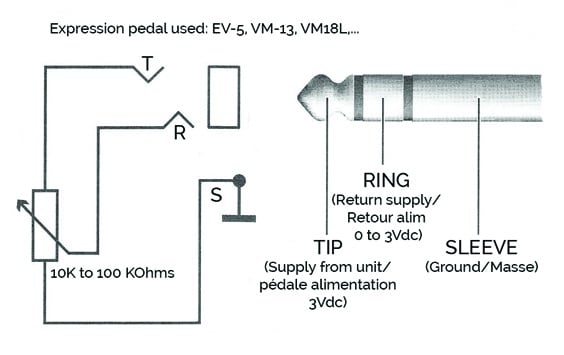
Important note regarding the expression pedal:
The application does not see the Wahouwah:
Make sure the pedal is activated.
Click the refresh button in the app.
If the application still doesn't see the Wahouwah:
Disable the application (clear the Keyztone application memory)
Turn your phone's Bluetooth off and then back on (clear the Bluetooth cache).
Restart the pedal by turning it off and then back on.
Launch the Keyztone application and refresh it.
If you see this message: ""The link has been reset on the Wah but not on the phone. Delete the link on the phone and go back. "
Disconnect the pedal from your phone in your Bluetooth settings
Detach your phone from the pedal by powering the pedal while pushing the left button. down (Release after feeding).
Launch the keyztone application, refresh and connect the phone to the pedal.
If you are still experiencing connection problems:
Close the Keyztone application
Make sure the pedal is not stuck to your phone (if it is, peel it off).
Turn your phone's Bluetooth off and then back on.
Perform a factory reset (you will return to the factory preset on the application's home screen) and peel off by pressing the buttons DOWN left and UP right side of the pedal during power-up (release after power-up).
Launch the keyztone application, refresh and connect the phone to the pedal.
And of course, for any other questions, feel free to contact us!